Quick Answer
To connect Shopify to Facebook and Google, install two free sales channels: Facebook and Instagram by Meta, and Google and YouTube. Each one links your business accounts, syncs your product catalog, and sets up conversion tracking. Before you start, have admin access to your Meta business portfolio, Facebook Page, Google Merchant Center, and Google Ads account. Make sure your products have complete details.
Google says products from eligible stores can appear in Google Shopping tab search listings for free.
The connection takes an afternoon. Getting the tracking right is what decides whether your ad money is spent well for the next year.
Your ads can only get as smart as the data you feed them. For most stores, that data stops at the click, and the platforms never learn which ones turned into sales.
Before you start
A smooth setup depends on what’s ready before you click "Add channel." Spend an hour on these checks first, and the connection itself goes quickly.

Your Shopify store. Get your store ready with a custom domain, published policies, a working checkout, and products with clear titles, descriptions, prices, images, and stock levels. Both Meta and Google review your products, and thin listings are the most common reason for rejection.
Your Meta accounts. You’ll need a Facebook Page for the business, a Meta business portfolio (formerly Facebook Business Manager), and an ad account. Shopify’s help center says staff connecting the channel need full control of the business portfolio and Page linked to the store.
Your Google accounts. You’ll need a Google account that can manage your Google Merchant Center and Google Ads accounts. You can create Merchant Center and Ads accounts during setup, but it’s cleaner to create them first with a shared business login.
Cost. Both sales channels are free to install. You pay for the ads you run on each platform, not for the connection itself.
A privacy plan. If you sell to regions that require consent, set up a cookie banner first. Shopify’s Customer Privacy API is how consent decisions reach Shopify-managed pixels, audiences, and checkout.
Key Takeaways
Connecting Shopify to your ad platforms pays off when you treat it as:
- A tracking job first: Ads platforms can only optimize toward sales they can see.
- A data quality job second: Your product feed is your ad, so incomplete listings cost you reach.
- One owner per account: Business-owned logins stop a departing contractor from taking your ad history with them.
- Something to check monthly: Feeds and pixels break quietly, so look before the numbers drift.
Connect Facebook and Instagram
Meta’s Shopify channel is called Facebook and Instagram by Meta. It installs as a sales channel rather than an app, so you’ll find it under Sales channels in your Shopify admin.

One catalog powers your Facebook Shop, your Instagram shop, and your Facebook ads. That means your product feed only needs to be right in one place.
Steps to connect Meta
- From your Shopify admin, go to Settings, then Sales channels, and open the Shopify App Store.
- Search for Facebook and add the Facebook and Instagram by Meta channel.
- Choose the feature to set up first, such as marketing or a Facebook Shop, and click to start setup.
- Connect your Facebook account and select your business portfolio, Facebook Page, ad account, and Instagram account.
- Choose your data sharing level, accept the terms, and finish setup.
- Check that your products have synced to the catalog, and fix any products Meta flags.
Choose the right data sharing level
Shopify offers three data sharing levels: Standard, Enhanced, and Maximum. Standard uses only the Meta pixel in the shopper’s browser, which ad blockers can stop.
Enhanced and Maximum add Meta’s Conversions API, which sends purchase events from Shopify’s servers to Meta’s. Server-to-server events can’t be blocked by browser ad blockers. These levels share more customer information for matching, so make sure your privacy policy covers it.
For most stores running Meta ads, Maximum gives the ad system the most complete picture. If your privacy obligations are strict, review the settings with whoever handles your compliance.
What about Facebook lead ads?
Lead ads collect contact details inside Facebook instead of sending people to your store. They suit high-ticket or custom products where a sales conversation comes first. For most Shopify stores selling standard products, catalog and conversion campaigns that send shoppers to product pages are the better starting point.
If Meta can’t see the sale, it can’t find you more buyers like the last one.
Connect Google and Google Ads
Google’s sales channel for Shopify is Google and YouTube. It connects your store to Google Merchant Center, Google Ads, and Google Analytics, and you choose which ones to link.

Once connected, your products sync to Merchant Center automatically. From there they can appear in free Shopping tab listings for eligible stores. They also feed Shopping and Performance Max ads when you run campaigns.
Steps to connect Google
- From the Shopify App Store, install the Google and YouTube channel.
- Connect the Google account that owns your Merchant Center and Ads accounts.
- Link your Merchant Center account, or create one, and confirm your store details.
- Choose the countries you want to sell in and confirm shipping settings match your Shopify markets.
- Review which products sync, and add any missing product details Google asks for.
- Link your Google Ads account and set up conversion measurement.
Product approval can take a few days, so don’t plan a launch-day campaign on the day you connect. Watch the Merchant Center diagnostics for disapproved products, and fix them in Shopify so the fix carries through on the next sync.
Set up conversion tracking
Tracking is the step most stores rush, and it’s the one that matters most. Without it, both ad platforms optimize toward clicks instead of sales.
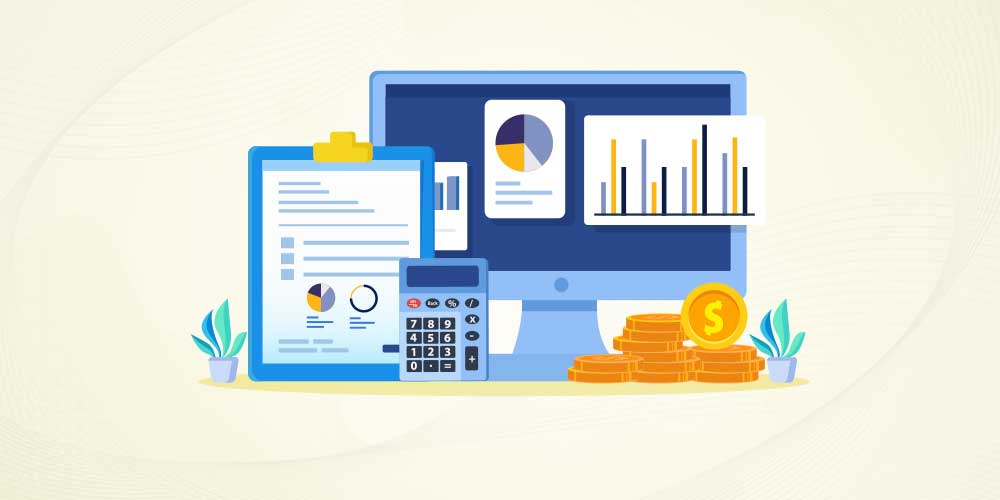
Google Ads conversions
Google’s Shopify conversion tracking guide says that when you link Google Ads, "purchase, add to cart, and checkout started" become the suggested default conversion actions. Shopify maps each one to the matching store event.
Accept those defaults unless you already have conversion actions set up. If you do, map the Shopify events to your existing actions instead of creating duplicates, which would double-count sales.
Google also offers enhanced conversions, which add "hashed first party conversion data" such as email addresses to your tracking. Turn it on if your privacy policy covers that use.
Meta conversions
The data sharing level you chose during setup controls Meta tracking. With Enhanced or Maximum, purchases reach Meta through both the pixel and the Conversions API. A sale still registers when a browser blocks the pixel.
Test before you spend
Place a test order after setup, then check that it appears in both platforms. In Google Ads, look at the conversion action status. In Meta, check the events in Events Manager.
| What to check | Where to look | What good looks like |
|---|---|---|
| Products synced to Meta | Meta Commerce Manager catalog | Products listed with no rejection flags |
| Products approved by Google | Merchant Center diagnostics | Few or no disapproved items |
| Google purchase tracking | Google Ads conversion actions | Status shows recording conversions |
| Meta purchase tracking | Meta Events Manager | Purchase events arriving from browser and server |
| Consent handling | Shopify customer privacy settings | Banner active where your markets require it |
Now ask yourself: if your ads stopped reporting sales tomorrow, how long would it take you to notice?
Facebook ads or Google ads: where to start
Once both channels are connected, the next question is where to put your first ad dollars. The two platforms reach shoppers at different moments, and that difference matters more than any targeting setting.

Think about how your customers find products like yours today. Do they search for them by name, or do they stumble on them and decide on the spot? Your answer points to the right first platform.
Google reaches people who are already searching for a product. Someone typing "waterproof hiking boots size 11" is close to buying, and a Shopping ad with your price and photo meets them there.
Meta reaches people who aren’t searching yet. Facebook ads and Instagram ads show products to people based on interests and behavior, which suits products people buy on impulse or discover visually.
| Question | Google Ads | Facebook and Instagram ads |
|---|---|---|
| When does the shopper see it? | While searching for a product | While scrolling a feed |
| What does it need from you? | Accurate product feed and prices | Strong images and a synced catalog |
| Which products suit it? | Products people search for by name or type | Visual, giftable or impulse products |
| How fast can it work? | Quickly, if demand already exists | Needs testing to find the right audience |
For most stores selling products people already search for, Google Shopping is the steadier place to start. Add Meta once tracking is proven, or start there if your products sell on looks.
Either way, selling on Facebook and Google works best when both platforms integrate with the same clean product data. Fix a product once in Shopify, and the change reaches both.
Common errors and how to fix them
Most connection problems fall into a handful of patterns, and each has a standard fix.

- Account permission errors: The person connecting doesn’t have full control of the Meta business portfolio or admin access in Google. Fix the access in Meta or Google first, then reconnect.
- Products rejected or disapproved: Missing details, mismatched prices, or policy issues. Fix the product in Shopify so the correction syncs to both catalogs.
- Duplicate conversions: An old pixel or tag added to the theme by hand is still firing alongside the sales channel. Remove the manual code once the channel handles tracking.
- Purchases not recording: Often caused by a third-party checkout step, a missing consent setup, or an outdated tag. Place a test order and trace where the event stops.
- Wrong countries or currency: Shopify markets and shipping settings don’t match what you chose in Google. Align them and resync.
- Catalog not updating: Product changes in Shopify aren’t reaching Meta or Google. Check that the products are published to the sales channel and that automatic sync is on.
- Accounts owned by a former contractor: The business can’t change settings or see history. Have every ad account owned by the business, with contractors added as partners.
Many of these errors trace back to the theme. Hand-added tracking code is common on older or heavily edited themes. That’s one reason a custom Shopify theme should be built with the sales channels in mind.
Keep the connection healthy
Feeds and tracking drift over time. New products go live with missing details, apps add code, and platform updates change how events are sent.

Set a monthly reminder to check catalog diagnostics in Meta and Merchant Center. Confirm recent purchases appear in both ad platforms, and review any new apps for tracking code. The check takes about 20 minutes.
Data from these connections also shows where shoppers leave your store. If ads bring visitors who don’t buy, the problem may be the store, which a Shopify conversion audit is built to find.
Keep an eye on new shopping features too. AI shopping tools and new checkout options are among the ecommerce innovations that depend on the same clean product feed you just set up.
Shopify, Facebook, and Google FAQs
Is it free to connect Shopify to Facebook and Google?
Yes, both sales channels are free to install from the Shopify App Store. You pay only for the ads you run on Meta and Google. Free listings on Google’s Shopping tab are available to eligible stores at no cost once products are approved in Merchant Center.
Do I need Google Merchant Center to run Google Ads for Shopify?
You need Merchant Center for Shopping ads, Performance Max with products, and free Shopping listings. Search ads alone don’t require it. The Google and YouTube channel lets you choose which Google accounts to connect. You can link only Google Ads if you don’t sell through Shopping.
Why are my Shopify sales not showing in Google Ads or Meta?
The usual causes are an unconnected conversion setup, duplicate or outdated manual tracking code, missing consent setup, or a third-party checkout step. Place a test order and check the conversion status in Google Ads and the events in Meta Events Manager to see where it fails.
Which Facebook data sharing level should I choose?
Maximum gives Meta the fullest view of sales, using the pixel and the Conversions API together. Standard relies on the browser pixel alone, which ad blockers can stop. Choose Enhanced or Maximum for better tracking, and confirm your privacy policy covers the customer data shared.
Getting help in Reno
If you take one thing from this, set up tracking before you spend a dollar on ads.
White Peak is a web design and digital marketing agency in downtown Reno. We build and connect Shopify stores for businesses in Reno, Sparks, Carson City, Truckee, and nationwide.
If you’d like a second pair of eyes on the setup, our ecommerce website design team will check it with you in a free consultation.